Elements of an EDL
The elements of an EDL are described in the following sections.
Title and Sequence Timecode Format
The first line of an EDL contains the title of the sequence. In NTSC sequences, the second line displays whether the sequence timecode is drop frame or non-drop frame.
Event Number
An event number uniquely identifies each event in the EDL. An EDL event requires two lines if more than one source is used. For example, a dissolve requires one line for the outgoing shot and a second line for the incoming shot.
Reel Name
A reel name describes which source tape (or reel) the clip comes from. Final Cut Pro assumes that clips without reel names come from non-tape sources, such as color bars, black, or other generators. Final Cut Pro automatically designates these auxiliary sources with the reel name AX.
Important: Make sure all clips with timecode sources have reel names before exporting an EDL, or you won’t be able to easily re-create your sequence when you open the EDL on another editing system.
Track Type
Each edit uses one or more tracks in the sequence. In the case of tape-to-tape editing, this field determines which tracks are turned on on the record deck during this event.
- V: Video
- A: Audio (Some EDL formats label this 1 or 2.)
- A2: Audio 2
- AA: Both channels of audio
Video track V1 is the only video track exported. Clips on video track V2 appear as key effect (K) over the V1. Video tracks V3 and above are ignored during EDL export.
Edit (or Transition) Type
An EDL can represent several kinds of video edits, or transitions. A cut requires a single source, while all other types of edits require two sources, and thus two lines in an EDL.
- C: Cut. This is the simplest kind of edit.
- D: Dissolve. This transition begins with one source and dissolves to a second source.
- W: A wipe. This is followed by a wipe code that indicates the type of standard wipe.
- K: A key edit. Clips on Video track 2 can be used as the foreground (fill) layer in a standard video key.
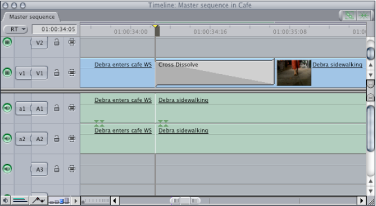
A dissolve from a Final Cut Pro sequence is shown below in EDL format.
Transition Duration
The duration of a transition (in frames) follows the transition type. For example, D 024 indicates a 24-frame dissolve.
Source In and Out, Record In and Out
In each line of an EDL, the first pair of timecode numbers are the source In and Out points. The second pair are the record In and Out points, which correspond to the clip’s location in the Timeline.
Edits that use transitions such as dissolves or wipes require two lines. The first line represents the source before the transition, and the second line is the source after the transition.
On tape-to-tape editing systems, the tapes containing the two shots are loaded in two video decks—VTR A and VTR B. To perform a dissolve or wipe, the edit controller plays both decks simultaneously and uses a hardware video switcher to create the transition effect as it’s recording on the final master tape. However, when both shots in a dissolve, wipe, or key are on the same reel, it is impossible to perform the effect in a tape-based editing suite. This is because the tape cannot be in both places at the same time. For a workaround to this problem, see Settings and Options in the EDL Import Dialog.
Split edits, where the video and audio have separate In and Out points, require three lines.
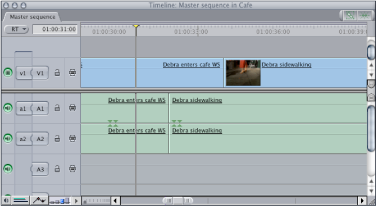
The first line indicates which track is delayed and by how much, the second line indicates the track (audio or video) that plays through the entire edit duration, and the third line contains the delayed track.
Notes
An EDL can store notes, indicated by a line starting with an asterisk (*), between event lines. Notes can be used to clarify events for the editor receiving the EDL, and can include information that the EDL cannot store directly. For example, an EDL can’t directly store audio levels of a clip, but the audio level can be stored in the EDL as a note. In the EDL Export dialog, you can choose to export one of the Master Comments 1–4 or Comments A–B.